Кіраванне файламі cookie, якія выкарыстоўваюцца для рэкламы, такіх як персаналізацыя рэкламы, рэмаркетынг і аналіз эфектыўнасці рэкламы.
5.1.1. Access to VPS via SSH
Credentials
Attention!
For security reasons, the root user password is not stored in plain text on the hosting. It is sent to your account email after installing the OS. If you forget your password, you can only set a new one by clicking the "Change password" button.
SSH server credentials can be found in the "VPS" section on the "SSH / VNC" tab in the "SSH" block: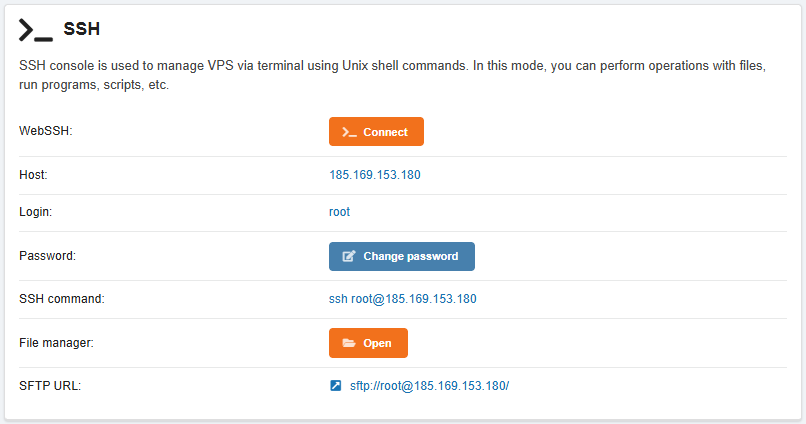
- "WebSSH" — connect to the server using the web client.
- "Host" — server IP address.
- "Login" — standard
root. - "Password" — change the root user password.
- "SSH command" — ready-made command for connect to the server via the console.
- "File manager" — open the server contents in the file manager of the control panel.
- "SFTP URL" — link in the format
sftp://login@host/, which contains all the connection data except for the password and port. Can be used for quick connection using an FTP client, such as FileZilla. Note The default port is22, but it can be changed by the server owner or a third-party administrator.
Connect
WebSSH
WebSSH is a web client built into the control panel. It allows you to quickly connect to the server via SSH without using third-party apps.
Important points:
- When using WebSSH, authorization is performed by password only. Other authorization methods, such as SSH keys, are not supported.
- When connecting, you can use the main IP or dedicated IP (if ordered).
To connect, open the "VPS" section and launch the web client using one of the following methods:
- In the "Server access" section, click "WebSSH".
- On the "SSH / VNC" tab in the "SSH" block, click "Connect".
Console
- Open your OS console:
- macOS terminal or Linux terminal.
- Execute the command (instead of
xxx.xxx.xxx.xxx, use the IP address of your server):ssh root@xxx.xxx.xxx.xxx - After establishing the connection, enter the root user's password. ⚠️ For security reasons on Linux systems, characters are not displayed on the screen when you enter a password or paste it from the clipboard.
PuTTY
- Download, install, and run PuTTY.
- Specify the connection settings and click "Open":
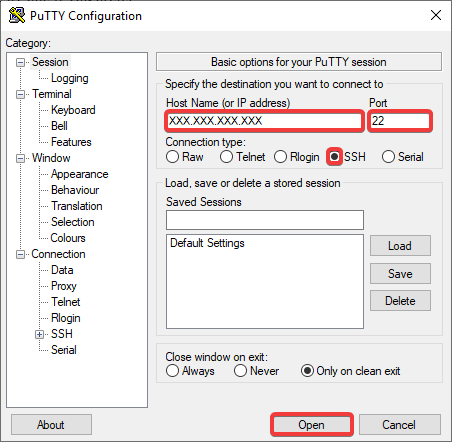
- "Host Name (or IP address)" — your server IP address.
- "Port" —
22. - "Connection type" — "SSH".
- If the warning is displayed, it means that the server key is not in the PuTTY cache (this is normal for the first connection) or has changed. To connect, click "Accept" or "Connect Once":
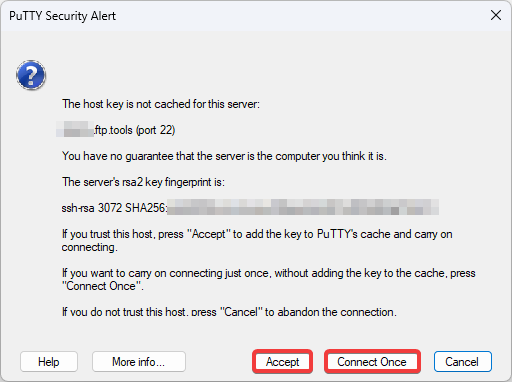
- "Accept" — connect and store the current server key in the PuTTY cache (future connections will not display the warning until the PuTTY cache is cleared or the server key is changed).
- "Connect Once" — connect without storing the key in the PuTTY cache (the warning will be displayed again on future connection).
- "Cancel" — do not connect and do not store the key in the cache.
- After connecting, enter the login
rootand the root user's password. The password can be entered manually or copied and pasted using the right mouse button. ⚠️ For security reasons on Linux systems, characters are not displayed on the screen when you enter a password or paste it from the clipboard.
(4)
Каментары