Кіраванне файламі cookie, якія выкарыстоўваюцца для рэкламы, такіх як персаналізацыя рэкламы, рэмаркетынг і аналіз эфектыўнасці рэкламы.
2.15.1.1.2. Certificate issued by certification center
Install
- Open the "SSL settings" section.
- Switch to the "Your certificate" tab.
- Fill out the form and save your changes:
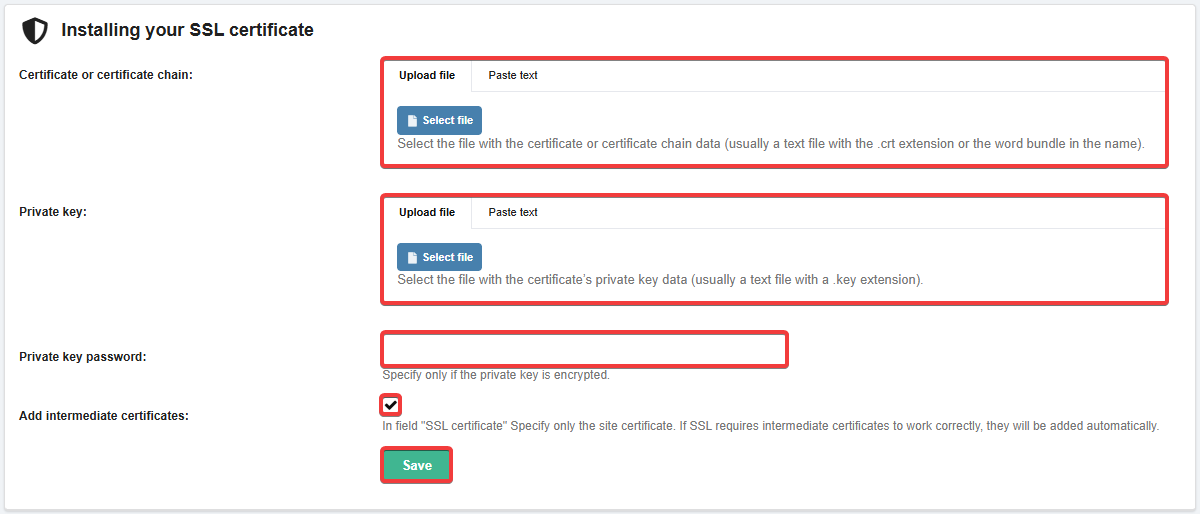
- Certificate or certificate chain — the data of the certificate or certificate chain is specified in any of two ways:
- File — on the "Upload file" tab, click "Select file" and select the file containing the certificate data.
- This is usually a text file with the
crtextension or thebundleword in its name.
- Text — copy the certificate data to the clipboard, switch to the "Paste text" tab, and paste the copied data into the text field.
- Private key — the private key data is specified in any of two ways:
- File — on the "Upload file" tab, click "Select file" and select the file containing your private key.
- This is usually a text file with the
.keyextension.
- Text — copy the private key data to the clipboard, switch to the "Paste text" tab, and paste the copied data into the text field.
- Use this method if the key was not provided as a file but as plain text (for example, in an email)
- Private key password — only needs to be specified if the private key is encrypted. In all other cases, leave the field blank.
- Add intermediate certificates — select this option if the certificate file contains only the certificate data for the domain and does not contain the entire certificate chain.
- Wait 15-30 minutes for the changes to take effect.
Notifications
Our system periodically checks the validity of installed certificates and, if they have expired, sends a notification to email and connected messengers.
Conditions for sending notifications:
- The site is hosted on our server.
- The site has installed own certificate (not Let's Encrypt).
- The certificate will expire in less than 2 weeks, or it has already expired.
- Notifications are sent no more than once a month for each site or subdomain.
(3)